Office 365 and Google Workspace Shortcuts for Students: Work Smarter, Not Harder
Topics: Office Suite Productivity, Student Workflow Hacks
In order to adjust to the deadlines of work, it is necessary for students to know about every possible input that can increase their office suite productivity. Hence, knowing your way around Office 365 and Google Workspace can save both time and effort, whether it includes typing an essay, making a presentation, or scrolling through numerous lecture slides. But beyond just using them, mastering these shortcuts and discovering student workflow hacks can be a very useful skill with the current industry trends.
Google Workspace Shortcuts Every Student Should Know
Google Docs
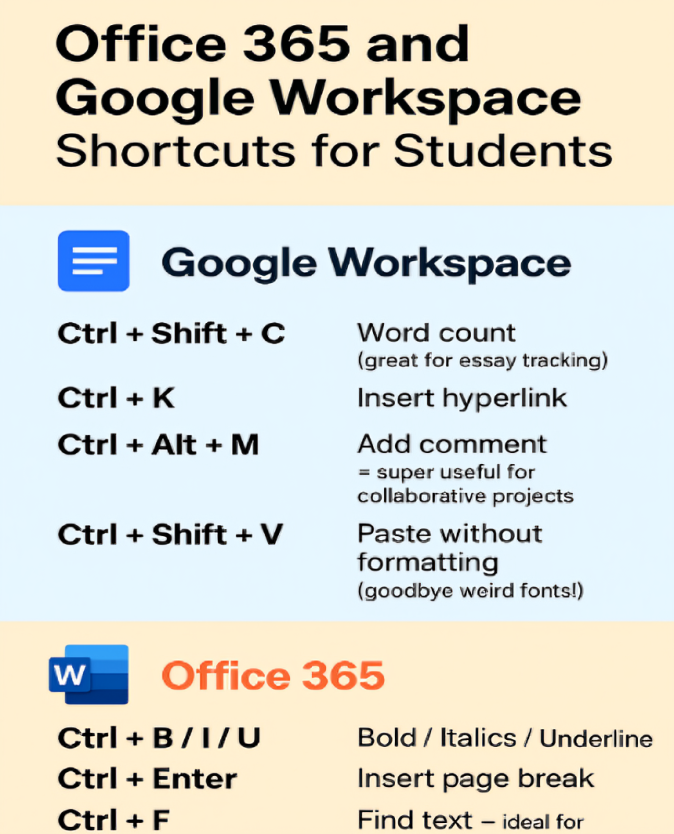
- Ctrl + Shift + C: Word count (great for essay tracking)
- Ctrl + K: Insert hyperlink
- Ctrl + Alt + M: Add comment – super useful for collaborative projects
- Ctrl + Shift + V: Paste without formatting (goodbye weird fonts!)
Google Sheets
- Ctrl + /: Opens the list of all available shortcuts
- Ctrl + (backtick): Show formulas
- Ctrl + Shift + Arrow Keys: Select a range of data
- Alt + Shift + F: Open the File menu
Google Slides
- Ctrl + M: New slide
- Ctrl + D: Duplicate selected slide or element
- Ctrl + Shift + C / V: Copy and paste formatting
- Ctrl + Shift + F: Enter or exit full-screen mode
Office 365 Shortcuts for Faster Work
Word (Office 365)
- Ctrl + B / I / U: Bold / Italic / Underline
- Ctrl + Enter: Insert page break
- Ctrl + F: Find text – ideal for proofreading
- Alt + Shift + D: Insert current date
Excel (Office 365)
- Ctrl + T: Create a table
- Ctrl + ;: Insert today’s date
- Ctrl + Shift + L: Add or remove filters
- F4: Repeat the last action – a lifesaver for repetitive work
PowerPoint (Office 365)
- F5: Start presentation from the beginning
- Shift + F5: Start from the current slide
- Ctrl + G: Group elements (text, images, etc.)
- Ctrl + Shift + > or <: Resize text quickly
Why Shortcuts Matter in Student Life
Thinking that these shortcuts might not be useful because using them and saving a few seconds doesn’t matter, however, multiplying them over hours helps you get your work done faster. Instead of fumbling through a menu to select copy, use Ctrl+C for quick usage. Also, during live classes, timed exams, and shortcuts help you stay sharp.
Real Talk: Which to Use and When?
Most students use a mix of both platforms, Google Workspace and Office 365. Google Docs is great for fast, collaborative writing with various templates to make the work even easier. Office Word provides a platform for more refined and professional writing.
Knowing the quick ways for both means you can move fast, adapt, and take on what your teacher or team gives you. Tips to Get Going: Learn the shortcuts you’ll use every day.
Put a list of shortcuts on your desk to learn and use them well. Try a new shortcut each day for a week.
Shortcuts can for sure help you do your work quicker and better. As a student, your time matters a lot. Picking up these little tricks in Google Workspace and Office 365 will make your workflow better and save you some time in your full day.
FAQ on Office Suite Productivity and Student Workflow Hacks
1. Why are office suite productivity skills important for students?
Office suite productivity is essential because students often juggle multiple assignments, projects, and tight deadlines. Understanding and using the features of Office 365 and Google Workspace can help manage tasks more efficiently. Developing student workflow hacks ensures students work smarter, reducing stress while improving their academic performance and saving valuable time.
2. What are the key differences between Office 365 and Google Workspace for students?
While both suites offer similar tools such as word processing, spreadsheets, and presentation software, Office 365 emphasizes powerful desktop applications and rich formatting. Google Workspace is web-based, focusing on seamless collaboration and real-time editing. Knowing the shortcuts and workflow hacks for both gives students flexibility to adapt and maintain high office suite productivity regardless of platform.
3. How can keyboard shortcuts improve my office suite productivity?
Keyboard shortcuts reduce the time spent navigating menus and performing repetitive tasks. For students, mastering shortcuts in Word, Excel, Google Docs, or Sheets means faster essay writing, data analysis, or presentation building. These student workflow hacks can shave minutes off every task, adding up to hours saved over a semester.
4. Which Google Workspace shortcuts are most useful for students?
Some essential Google Workspace shortcuts include Ctrl + Shift + C for word count in Docs, Ctrl + K for adding hyperlinks, and Ctrl + Alt + M for comments during group projects. In Sheets, shortcuts like Ctrl + / to view all commands help students discover workflow hacks that optimize spreadsheet use efficiently.
5. Can you share some Office 365 shortcuts that boost student productivity?
Yes, in Word, Ctrl + B/I/U lets you quickly format text, while Ctrl + Enter inserts a page break instantly. Excel shortcuts like Ctrl + T create tables and F4 repeats actions, speeding up tasks. PowerPoint shortcuts such as F5 to start slideshows help students present ideas effectively. Knowing these shortcuts is a cornerstone of office suite productivity mastery.
6. How do student workflow hacks play a role in managing deadlines?
Student workflow hacks like using shortcuts, template libraries, and collaboration tools help streamline task completion. These hacks enable students to focus on content creation rather than formatting or navigating the software, making deadline management easier and more efficient, a key aspect of office suite productivity.
7. Can using Office 365 and Google Workspace shortcuts help during timed exams or live classes?
Absolutely. When time is limited, knowing shortcuts lets students perform tasks smoothly without wasting seconds fumbling through menus. Mastering these student workflow hacks increases accuracy and productivity, making exams and live online classes less stressful.
8. What is the best approach to learn and remember these shortcuts?
Start with the most commonly used shortcuts related to your frequent tasks, then gradually add new ones. Keep a printed list visible during study, and practice regularly to convert shortcuts into habits. This approach turns workflow hacks into natural office suite productivity boosters.
9. Are there any tools or apps to help learn shortcuts for Office 365 and Google Workspace?
Yes, many websites, browser extensions, and apps provide practice games, cheat sheets, and tutorials focused on keyboard shortcuts. Using these resources can reinforce retention and increase overall student workflow hacks, helping students work faster and smarter.
10. Is it useful to combine both Office 365 and Google Workspace in student work?
Yes. Many students use Office 365 for polished document creation and Google Workspace for real-time collaboration. Understanding workflow hacks and shortcuts in both suites empowers students to switch fluidly, maximizing office suite productivity by using the right tool for each task.
11. How do collaboration features in Google Workspace enhance student workflow hacks?
Google Workspace’s strengths lie in cloud-based collaboration. Features like live comments, suggestions, and version history enable smooth teamwork. Combined with shortcut mastery, these capabilities boost office suite productivity by reducing communication delays and streamlining feedback integration.
12. What productivity benefits can students gain from mastering templates in Office 365 and Google Workspace?
Templates reduce time spent on formatting and design. Students can focus on content creation, confident that their documents, spreadsheets, and presentations look professional. This use of templates is a vital student workflow hack that leverages office suite productivity to the fullest.
13. How can students customize their workflow for maximum productivity?
Students can customize toolbars, shortcuts, and settings in both Office 365 and Google Workspace to match their habits and needs. Personalizing these elements enables smoother navigation and task completion, demonstrating advanced student workflow hacks that amplify office suite productivity.
14. What role does cloud storage play in improving office suite productivity for students?
Cloud storage allows seamless access to files across devices and easy sharing with classmates and instructors. This flexibility supports student workflow hacks by enabling prompt editing and collaboration anywhere, anytime, increasing overall productivity.
15. Are there any productivity pitfalls students should avoid when using Office 365 and Google Workspace?
Yes, overreliance on default settings or menus instead of shortcuts can slow work. Multitasking without focus reduces output quality. Students should aim to master key shortcuts and workflow hacks to avoid redundancy and inefficiency, maximizing their office suite productivity.
16. How do shortcuts support accessibility for students with disabilities?
Shortcuts can greatly aid students with physical or visual impairments by minimizing reliance on mouse navigation and enabling faster command execution. These student workflow hacks improve inclusivity and allow all students to maintain high office suite productivity.
17. Can mastering shortcuts improve teamwork on group projects?
Definitely. When all team members know key workflow hacks and collaboration shortcuts, communication is more efficient and fewer technical issues arise. This collective proficiency enhances office suite productivity and project outcomes.
18. What impact does knowing shortcuts have on reducing student stress?
Knowing shortcuts provides confidence during crunch times. Reduced time on routine tasks frees mental energy for creative and critical thinking. These workflow hacks contribute significantly to lowering stress, improving student well-being alongside office suite productivity.
19. How do updates and new features affect workflow hacks in Office 365 and Google Workspace?
New features and shortcut changes require students to stay current. Regularly exploring update notes and experimenting with features ensures ongoing improvement in student workflow hacks and consistently high office suite productivity.
20. What advice would you give to students starting to explore office suite productivity and workflow hacks?
Begin with mastering a handful of shortcuts that apply directly to your coursework. Combine this with using collaboration tools smartly and personalizing your workspace. Practice daily, stay curious, and adapt. These small, consistent steps accumulate to powerful student workflow hacks that transform your productivity.
Penned by Aditi Gupta
Edited by Shashank Khandelwal, Research Analyst
For any feedback mail us at [email protected]
Streamline Your Hiring with Eve Placement’s Custom Assessments
Eve Placement helps you engage, assess, and recruit top talent through tailored hiring challenges that go beyond resumes. From technical quizzes and real-world case studies to psychometric evaluations and audio/video submissions, our platform enables smarter, data-driven hiring decisions. Advanced security features ensure authenticity and eliminate fraud, giving you reliable results. Ready to hire better? Know More.
Mail us at [email protected]